Showing posts with label Spence. Show all posts

Monday, October 22, 2018

There were giants in those days, there are giants these days.

Patrick was my friend.

He was more a personal friend than a professional acquaintance, not to say he didn’t influence me professionally. There is no one in the SharePoint-verse who does not owe a debt of gratitude to Patrick. These days, now the community has grown so large around the world, and in some ways has become overly narcissistic it’s easy to overlook how it all begun, with the selfless and kind contributions of a small band of people. Patrick “Profke” Tisseghem was foremost among them. He was also a first rate engineer and teacher – a rare breed indeed. Most importantly, he was wickedly funny and always kind.

Ten years since he passed way too soon, the folks at the Belgian Information Worker User Group, of which he was a founding father, and some of his friends put together a touching tribute at the SharePoint Saturday Belgium event in Brussels. With their permission, you can check it out. Apologies in advance for the amateur camerawork.

Thank you, Patrick.


by Spence via harbar.net

Tuesday, August 21, 2018

Adding the SharePoint “stubs” to your VS Code PowerShell profile

Ahh, SharePoint. Ahh, SnapIns. Yeah. 2009 faxed and before the ink faded, told us the old crap is hanging around like a bad hangover. I hate SnapIns more than most, but that’s a story for another day. For the time being we are stuck with them when working with our “built from the cloud up” versions of SharePoint Server.

One of the more esoteric problems with SnapIns is a total lack of portability. In many situations you want to author scripts without being on a virtual machine that has SharePoint installed. In these days of “modern” we are mostly doing this in Visual Studio code to take advantage of the reasonably nice PowerShell authoring experience and of course the integration with GitHub and so on. Plus, fancy colours.

Thus, how can we get some additional help when authoring? What we need is a “mock” or a “stub” of the SharePoint cmdlets so we can get intellisense.

Thanks to the nice chaps who made the SharePoint DSC resources, we can do this easily by grabbing the stub they made (as a Module) and adding it to our PowerShell Profile. We used to do a similar thing back in the day by adding the SnapIn to the PoSh Profile to avoid having to load it when opening up ISE.

First thing to do is grab the stub(s). They are included in the SharePointDsc project on GitHub. However, there is no need to grab the whole thing – you can just get the SharePoint 2016 version from here. There is also a SharePoint 2013 version here. Save that bad boy on your machine someplace sensible. I put it in my _ScriptLibrary folder which lives in my OneDrive. Note there is also a stub for Distributed Cache which lives here.

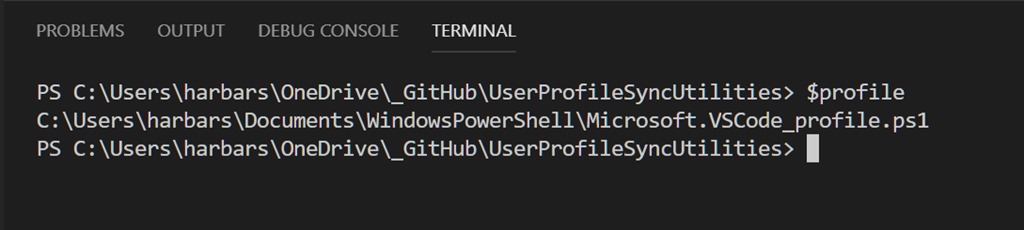
Now you have the stub we can add it to our PowerShell profile. Open up VSCode and make sure you are in a PowerShell session. Go to the Terminal and type $profile. This will display your current profile file location.

1

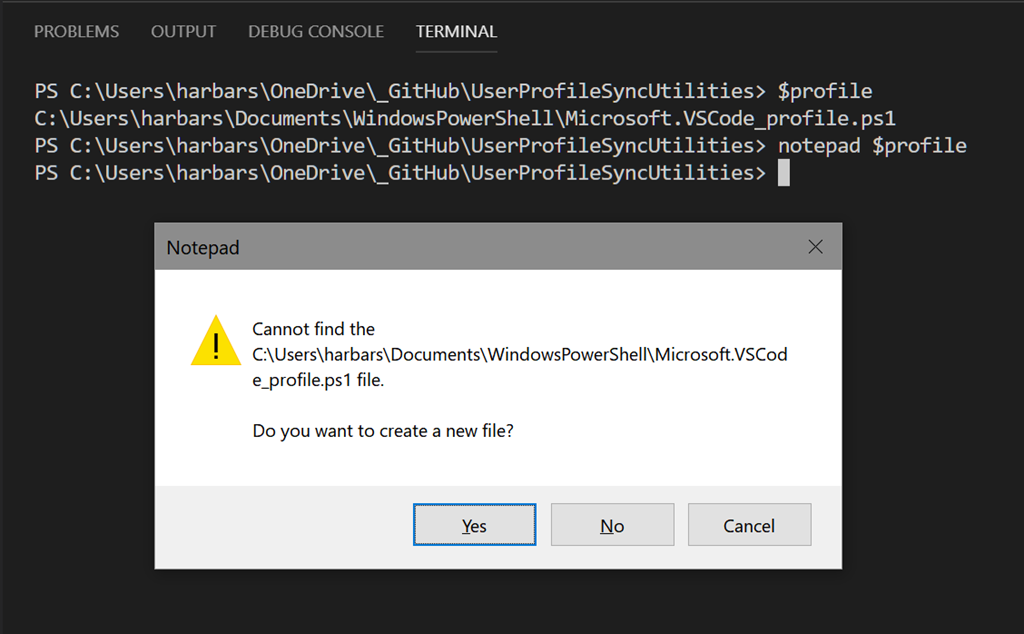
By default that file doesn’t exist yet so the simplest way to create it is to type notepad $profile, which will open up Notepad and prompt you to create it.

2

Then simply Import the module using the path to the stub file, my profile looks like this:

[sourcecode language='powershell' ]
# SharePoint 2016 Stub
C:\Users\harbars\OneDrive\_Script Library\Microsoft.SharePoint.PowerShell.psm1
[/sourcecode]

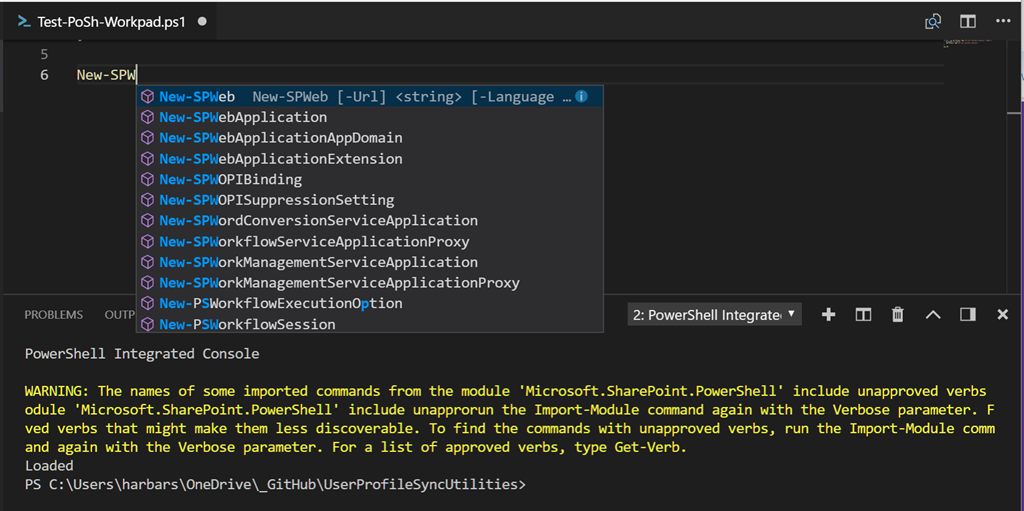
Save that file and close Notepad. The next time you open a VSCode PowerShell session the module will be imported and you will see a lovely warning about the made up verbs the SharePoint development team thought would be OK back in 2008! Chortles.

But never mind that (for the time being) we now have intellisense for the SharePoint cmdlets.

3

I actually tweak the profile a little so the warning is removed, and I add a message to say the Stub was loaded.

[sourcecode language='powershell'  padlinenumbers='true']
# SharePoint 2016 Stub
Import-Module "C:\Users\harbars\OneDrive\_Script Library\Microsoft.SharePoint.PowerShell.psm1"
Clear-Host
Write-Output "SharePoint Stub Loaded"
[/sourcecode]

4

Just a simple trick to get the SharePoint cmdlets on a machine without SharePoint installed. Enjoy. And don’t go making up any verbs! :)

s.


by Spence via harbar.net

Wednesday, June 27, 2018

European Collaboration Summit follow up: Tutorial Scripts and Identity Manager Demos

13886357_1081186301972836_5470626544742346563_nMany thanks to everyone who attended the European Collaboration Summit in Mainz, Germany, last month. It’s safe to say that the event overall was a runaway success and yes, we have already started planning for the 2019 edition!

At the event, I promised to publish some additional resources. These are a little later than I had hoped but with a new job and a variety of “more important” things on a rather large to-do list, the delay was inevitable. At any rate, this post serves as a landing page for these resources.

Tutorial Attendees: SharePoint 2016 Automation Toolkit

For those who attended the Infrastructure PowerClass hosted by Thomas Vochten and I, the scripts we showed and discussed for building out the On Premises portions of the Hybrid Labs are over here on GitHub. This toolkit has been used to build thousands of customer farms and has also been used at other pre/post conference events such as Microsoft Ignite. More details and so on can be found in the readme. I am not offering support for this toolkit. I will answer questions on it if they are easy to deal with quickly. But I will not be engaging in any debates about their worth, nor any religious arguments about DSC! :)

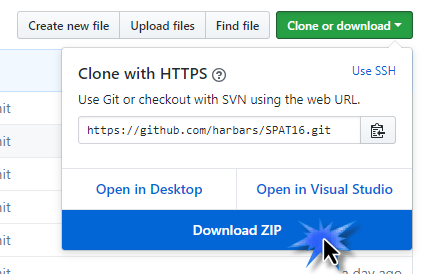
2018-06-26_20-58-01The 2013 version will be published over the next couple of weeks.

Don’t worry about GitHub if you are not familiar with it.
Within the page, there is the ability to download the files as a ZIP file – without having to do the whole “install some tools, clone, open” dance that the developers love so much! :)


Identity Manager & SharePoint Server Demos

During my session on User Profiles there wasn’t enough time to complete the demonstrations. As promised I’ve put together a 90 minute video of the complete demos, with some additional explanations and remarks.  This is hosted over on YouTube. Apologies in advanced for the slightly annoying sound quality. I had, erm, a slight ‘accident’ with my mic stand earlier today that will mean a trip to the music store in the near future – drat! :)


Identity Manager & SharePoint Server Scripts

All of the scripts used within the above demos, and indeed at other conferences, are also available over here on GitHub.


I hope some of you find these resources useful and once again, thanks for helping make #CollabSummit 2018 the single best community technology event on the planet!

34747662_1760481667376626_617131227853357056_o


I’m outta here like I dropped a couple tables in a production database!

s.


by Spence via harbar.net

Monday, June 25, 2018

RPC Server Unavailable when creating a SharePoint Farm… the curse of dodgy legacy NetDOM!

Every so often a real blast from the past comes back to haunt me. Usually it’s some obscure “infrastructure” gubbins – you know, the sort of thing that 80% of so called IT Pros knew in 1999. These days thou. Not so much.

With SharePoint in particular there is a whole boat load of legacy. Not that legacy is bad. Lot’s of it is awesome. That’s why the product remains so successful. On the other hand some of it is real, real, real nasty!  :)

It always seems to come in waves. Over the last two weeks I’ve had six emails regarding problems creating the first server in a SharePoint Farm. The ye olde “An error occurred while getting information about the user SPFarm at server fabrikam.com: The RPC server is unavailable”.

Naturally, there are a whole bunch of wild goose chases out there on the interwebz about how to potentially resolve this issue. Most of them are complete claptrap. Or even worse, a ‘support bot’ automated answer, something like “are you running as an administrator?” :)

Now this old chestnut can have a multitude of root causes and the API that raises this exception isn’t very clever about that – it just bubbles it back up the stack. As you might imagine, when SharePoint was first developed nobody was sat there running through all the various deployment scenarios and fire testing every code path to ensure a nice neat experience for the next 20+ years.  But more importantly 17-18 years ago, idempotent, designed to be managed via automation and state independence were not so much of a thing as they are now.  Let’s say we do it via PowerShell using New-SPConfigurationDatabase. That isn’t doing one thing. It’s doing a WHOLE BUNCH of things. All masked via the Server Side OM. The same is true if we use the Configuration Wizard. After all, they are both simply masks or wrappers for the OM.

The real problem with this error (and others like it), when creating a Farm, is that it only partly fails. The Configuration database is created on the SQL Server. It’s sitting there pretty happy. Indeed, it will have 711 Objects. New-SPConfigurationDatabase has sorta kinda worked. Even though it’s raised an exception. But it’s not really worked, and as soon as we go to the next stage of farm creation (typically Initialize-SPResourceSecurity) that will fail as well, with the error “Cannot perform security configuration because the configuration database does not exist.  You must create or join to a configuration database before doing security configuration.”

Interesting. Most people will actually check if the Farm exists after New-SPConfigurationDatabase by calling Get-SPFarm. This is mainly because the very first “build a farm using PowerShell” posts included this. However, in this case – it is entirely worthless. because Get-SPFarm will report the farm exists and that it is Online.

The sample script that virtually everyone has been following since SharePoint 2010 is entirely flawed. There is zero point in calling Get-SPFarm at this point. If New-SPConfigurationDatabase works it appears to be a nice little bit of defensive coding. And it does actually deal with some other errors that can occur. But it won’t help in the case of bubbled up exceptions from dependencies.

What we ACTUALLY should be doing here is restarting the PowerShell session entirely. Indeed if you try and do anything which would otherwise be sensible, like removing and adding the Snap In – it will likely crash the process anyway. Indeed. if you just leave it sitting there for a bit, the process will crash all on it’s own. How do you like those apples?

This is an absolutely critical thing to realise about the Administration OM and the PowerShell that wraps it. This is why delivering true desired state configuration for SharePoint is currently impossible. The only way to catch this is to catch it. Neither the OM nor the PowerShell cmdlets are designed or developed to be leveraged in an automation first approach. Doesn’t mean we can’t get pretty close, but as soon as you start delving into the details, it becomes obvious just how much work is required to do all the things the back end OM doesn’t.  And how exactly does one create a DSC resource that can detect a failed process, know exactly when it failed, and kick off another one to carry on? Yeah, exactly.

Again, SharePoint itself doesn’t handle the exception it just bubbles it back. It does no clean up. Our box is shafted. So to speak. Until we delete the database, and of course restart (or create a new) PowerShell session. Thus, in order to deal with this properly, we’d need to catch the specific exception and handle it appropriately. Do some remoting and kill the database (using SQL Server PowerShell), then restart our session. In other words clean up after the mess that SharePoint has made for us.

But of course we also need to fix the root cause of the problem before retrying.

“The RPC server is unavailable” is one of the classic, generic, “we have no idea what happened, throw this” errors. Now we live in a modern, transformed, cloud first world, we only have one generic error, “access denied” :). But back in the day, when type was understood, we had lots of them.

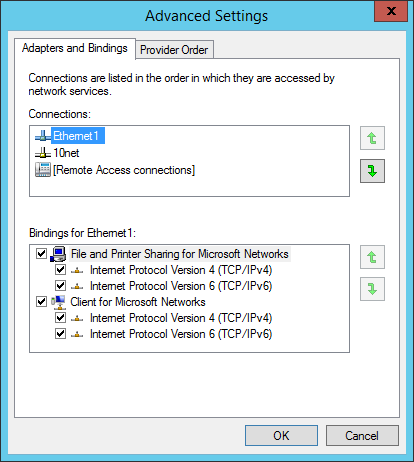
Sometimes the RPC server really is unavailable. But when creating a SharePoint Farm there is a 98% chance your machine has multiple Network Interfaces, and the prioritised (default) NIC cannot route to the SQL Server. It looks like this.

2018-06-25_12-51-09

In this example “Ethernet1” is a shared network to a backup device. The customer is using this network to separate farm traffic from management traffic. Is that a good idea? Well that’s a post for another time (or perhaps not!) but the thing is it’s extremely common. Even in IaaS lots of people do this.

If I move the “10net” network to the top of the list. Hey presto. No more RPC server is unavailable. It’s a common gotcha. The trouble is most people don’t know there even IS a NIC order. Never mind where in the UI to configure it. For over a decade all but one causes of this error, where I’ve been involved either as escalation or hands on, has been the NIC order.  It’s in my checklist before deploying farms – not that I really do that anymore, but whatever, that checklist doesn’t get updated much.

The good news is we can fix it with PowerShell, decent PowerShell….
Set-NetIPInterface -InterfaceIndex <index> -InterfaceMetric <new metric>

It of course shouldn’t be this way – the reason it is – is because the SharePoint APIs (especially the core Farm Admin ones) rely on some real legacy. In this case, what old timers refer to as the NetDOM stack. That’s an in joke related to an old utility used to hack AD things, back before there was a RTM AD and Microsoft were still doing NetBIOS. Now, it works. But that is the depth of a product like this. A rabbit’s warren of more or less every API made by Microsoft from around 1996 through to today. It would take a brave (and quite possibly barking mad) person indeed to make the decision to re-architect and re-implement the core admin stack.

Anyway the point of this post was to:

  • document the 98% case cause and resolution (fix the NIC order, even if only temporarily whilst the farm is built) so I don’t have to actually explain it ever again (I hope!)
  • provide a worked example of the importance of understanding how things are actually built, rather than merely the mask of veneer that so many products have today.

Not to be all Donald Rumsfeld, but remember with most things in life, and especially SharePoint - The more you know, the more you know you don’t know. You know?! :)

s.


by Spence via harbar.net

Friday, April 27, 2018

Resolving Catastrophic Distributed Cache Failures on VMWare vSphere or ESX guest virtual machines

Ahh, Distributed Cache, everybody’s favourite SharePoint service instance, the most reliable and trouble-free implementation since User Profile Synchronization. I jest of course, it’s the most temperamental element of the current shipping release, not to mention the most ridiculous false dependency ever introduced into the product and should be killed as soon as possible. However, it is extremely important to a SharePoint Farm in terms of both functionality and ensuring maximum performance. Even in simple deployments the impact of the Search and LogonToken related caches can provide ~20% performance and throughput improvements.

But what to do when it’s busted? Once Distributed Cache gets out of whack all bets are off and you are best throwing away the cache cluster and starting again, cleanly. This procedure has been documented by yours truly in the past. But it doesn’t help if no matter how many times you follow this procedure to the letter the service doesn’t stay up. Your Cache Hosts report “DOWN” or “UNKOWN”, and the Windows Service is either stopped, or faults immediately after starting.

This occurs often in misconfigured VMWare environments (vSphere and ESX). And it’s all down to the relationship between the guest configuration and the AppFabric configuration. As you hopefully know, SharePoint server is not supported with Dynamic Memory. Dynamic Memory is Microsoft speak for dynamically adjusting the RAM allocated to a guest. In VMWare this is actually the default configuration. The system estimates the working set for a guest based on memory usage history. Whilst the common statement is that dynamic memory will cause “issues with Distributed Cache” it’s a bit more serious than this in the real world.

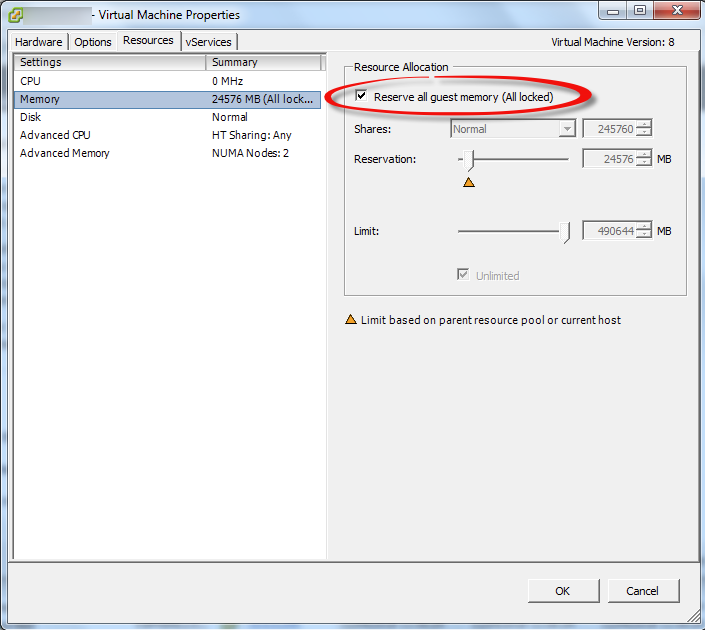
Generally speaking Guest VMs are provisioned by an infrastructure team responsible for the VM platform, and in almost all cases, the request to reserve all memory will either be not understood or ignored. This leads to the VM being configured with the defaults. If you are in control of setting up the guests then life is easy, you just ensure that the “Reserve all guest memory (All locked)” option is selected with the guest properties BEFORE you even install the SharePoint bits.

pic1

However, if you are in a situation where this was not configured originally and on that guest a SharePoint server is added to the farm and is running Distributed Cache things will go south quickly leading to a broken Distributed Cache. Even if you go back and select the option later, it’s hosed. The last machine which joins the cache cluster basically takes over. Just like with changing the service account – which resets cache size. The last one wins. Or in this case, totally hoses your farm.

One of the reasons the Distributed Cache and Dynamic Memory don’t get along, aside complete ignorance is that the Cache Cluster Configuration is not modified based on the memory resource management scheme in place (AppFabric includes this support, but it’s not exposed via the SharePoint configuration set).

The default Cache Partition Count varies for different memory resource management schemes. So, once we change that, we need to alter this configuration. If we install fresh on a new guest correctly configured it’s set automatically.

In this situation we need to deal with it ourselves, and as always there is zero (until now) documentation on this issue. This info has been used to support hundreds of customers via CSS cases over the last few years (I don’t know why it hasn’t been published properly).

Here’s the fix:

1. You need a Cache Cluster – it doesn’t need to be working (!) but if you’ve deleted all the service instances and so on, you need to bring back a broken Distributed Cache first.

2. Use the following PowerShell to export the Cache Config to a file on disk

Use-CacheCluster
Export-CacheClusterConfig c:\distCacheConfig.xml

3. Edit the XML file so that the partitionCount is 32:

<caches partitionCount="32">

4. Save the XML file

5. Use the following PowerShell to ensure the Cache Cluster is stopped and import the modified configuration, and then Start the Cache Cluster (this time it will actually start!)

Stop-CacheCluster
# should report all hosts down

Import-CacheClusterConfig C:\distCacheConfig.xml
Start-CacheCluster

6. Once you’ve done this you can use the standard tooling to report on the cluster or use my PowerShell module, each host in the cluster will report “UP” and you can interrogate the individual caches to verify they are being populated. You will of course need to modify your cache size if you have changed it previously, or wish to. Do it now before it starts being used!


Happy days!


s.


by Spence via harbar.net

Thursday, April 19, 2018

Update: Using WMU to transfer NEFs to iOS for editing etc.

In a previous post I showed Using Nikon Wireless Utility with the Nikon D500 on iOS to download NEFs to iOS which worked for a while. However Nikon made some significant updates to SnapBridge – making it actually much better in terms of connection ease and reliability and remote photography. It’s still not much of a bridge to your snaps thou – it still restricts you to the silly 2Mb file and it only transfers JPEGs which means you need to be shooting them. Rubbish. These updates also break the procedure detailed previously.

I fiddled around with qDslrDashboard – but alas this is not available in the UK iOS Store. And even on a Windows PC I could not get the machine to connect to the D500 or D850 wireless.

It turns out it’s so much easier now – still using WMU. BUT you need two devices. So a hoop jump, but here’s the updated procedure.

  1. Pair your camera with SnapBridge on device one (I'm using an iPhone) as normal.
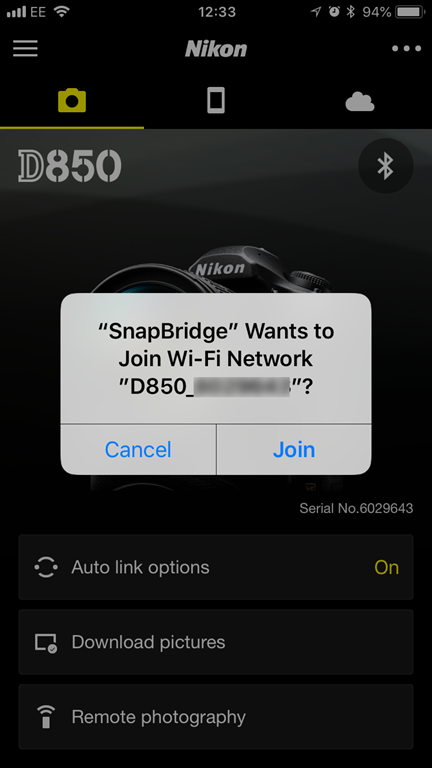
  2. Click Remote Photography or Download Pictures – it doesn’t matter, as long as you do something to initiate the Wireless connection on the camera.  Click OK to enable the camera Wi-Fi, and wait whilst it’s started. When the Join screen appears, do NOT click Join.

    Note the Wi-Fi Network name, which will be the camera model_serial number, e.g. D850_6666666

    Leave device one on this screen.

    IMG_3227
  3. On device two (I’m using an iPad Pro) connect to the camera Wi-Fi using the regular iOS Settings. The password you can view from the camera menus. It will be NIKONDXXX, where XXX is your camera model. You only need to enter this the first time you connect.

    IMG_0424
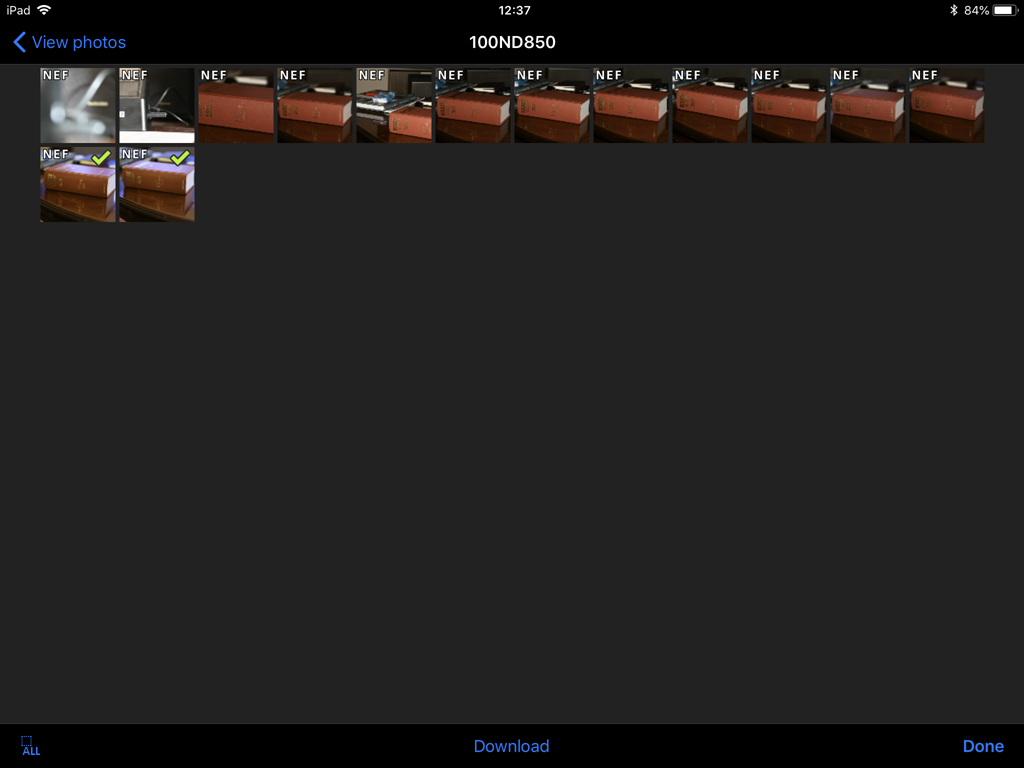
  4. Once connected, open up WMU, click View PhotosPictures on Camera – then you can browse, select and download images from the camera cards.

    IMG_0425


And of course these are now available on your device two for editing in Lightroom mobile or whatever. Happy days!

IMG_0428


Remember to charge your batteries!!!! Smile and have a spare one or three in your pocket. Especially with the D850 these are some BIG ASS NEFs!

s.


by Spence via harbar.net

Friday, February 2, 2018

Using PowerShell to import Profile Photos when using Active Directory Import and SharePoint Server 2013/2016/2019

One of the most common requests I have received over the last couple years has been how to leverage PowerShell to get User Photos from Active Directory (or any other location really) into the SharePoint User Profile Store. With the removal of User Profile Synchronization (UPS) in SharePoint 2016 this need has increased significantly. For most mid market customers this is a key requirement, and implementing Microsoft Identity Manager (MIM) for this purpose is not practical.

I did spend a whole bunch of time before the release of SharePoint 2016 attempting to convince the powers that be, that Active Directory Import (ADI) should include this capability to ease the upgrade pain and so forth. Alas, the goal was to remove UPS, not address the gaps left by it’s removal.

At any rate, if the business requirements can be met by ADI, with the exception of User Photos, then MIM is absolutely NOT the right solution. From an architectural perspective, a operational management perspective, and most importantly a cost perspective, it’s just daft. Thus I have always suggested that for this requirement a simple PowerShell script, regularly scheduled is the appropriate approach.

Now in essence such a script is simple. We iterate Active Directory, get the photos from thumbnailPhoto, then put them in the Profile Pictures folder within the My Site host. Depending upon operational requirements we can enhance this basic capability with logging and caching of the images on the file system and so forth.

Active Directory provides us with two key APIs for this work. We can use the basic APIs exposed nicely thru the ActiveDirectory PowerShell module, or we can use DirSync. DirSync is more complicated, but vastly preferable as it provides a change log as well as much more efficient operations generally. It’s actually how ADI works under the covers (another reason why it’s farcical from a technical perspective why ADI doesn't include this capability). So there’s nothing to install on the box, whereas with the AD PowerShell we have to install the RSAT tools and import the module which is generally not done on a SharePoint server.  We do however require Replicating Directory Changes in order to make use of the change log – use the very same account you use to perform ADI and you’re all set.

But then we come to SharePoint! : ) As always it get’s more “interesting”….

Firstly, the “Profile Pictures” folder. That bad boy is not created until the very first profile photo is created. And it sits within the “User Photos” folder. i.e. http://ift.tt/2DXPCBT Photos/Profile Pictures. somebody, somewhere, somewhen thought this was clever. It is not. Anyway. no biggie. we need to accommodate checking it exists and if not, creating it.

Secondly the file name of the images, before they are “translated” into usable images by Update-SPProfilePhotoStore. This is a real problem because they include a “default partition ID”. There is no public API to discover this value. There is a way to get it but that involves calling a legacy web service which is unsupported (this is how Microsoft themselves do it in the MIM SharePoint Management Agent). The good news is that this GUID is the same on every SharePoint 2013/2016/2019 deployment.  So we can just slap it in as variable and use it to splat the filename. But we need to be aware that this means the solution will only work with a non partitioned UPA. and of course there is a possibility this GUID may change in the future.

We also still need to run Update-SPProfilePhotoStore once the import is complete, to create the three thumbnails that SharePoint uses.

We also need to ensure that both the import script and Update-SPProfilePhotoStore are run on a machine hosting the User Profile Service service instance. The latter will not raise any exception if it is run elsewhere, it merely does nothing and quits!

With all this said in terms of brief explanation, the basic script from Adam Sorenson can be found over at https://gallery.technet.microsoft.com/SharePoint-User-Profile-928b39c0.  You can update the initial variables to suit your environment. You will also need a “dummy” DNLookup.xml as described over at https://blogs.technet.microsoft.com/adamsorenson/2017/05/24/user-profile-picture-import-with-active-directory-import/.

Now yes, there are lots of things “wrong” with this script. Some are the fault of SharePoint as previously discussed, and others are more regarding operational management. But the point of posting is that this is a start point for which you can build out what you need. For example you may not wish to cache images on the file system (although for large environments that is a good idea). Further you would look to clean up the PowerShell and/or make it into a module and so on. Also watch out for the LDAP filter that’s used, this may not reflect your requirements.  I would also remove the horrible legacy API for alternative credentials.  Otherwise, this script is actually more or less identical to mine, except that I split out the gathering of photos to support Urls as well as Thumbnails, and I used the “private” API for the “partition ID” as I was looking for a way to encourage the powers that be to provide a public API (and needed a solution for Multi Tenant).

If there is enough interest I will publish my PowerShell Module but this script is all you need to get started…


s.


by Spence via harbar.net

Monday, August 7, 2017

Configuring a Partitioned UPA in SharePoint 2016 with Active Directory Import

Introduction

For about a year now I’ve been plagued by people asking me how to configure a partitioned User Profile Application (UPA) in SharePoint Server 2016, and perform successful profile import using Active Directory Import (ADI). Every few weeks someone asks for the configuration, and it basically got to the point where it made sense to post this article to which I can refer folks.

Now, I am not going to provide all up coverage here. I expect you to be familiar with the fundamental concepts of SharePoint Multi-Tenancy. You can head over to my other articles here (2010), here (2013), and on TechNet for that information. All I am going to do in this article is outline the changes in the configuration of the UPA and ADI because of the removal of UPS from SharePoint 2016. I’ll also point out a couple of significant gotchas which are imperative to plan for.

Having said that, it would be remiss to not state categorically that multi-tenancy is absolutely NOT something most customers should be doing. Neither I, or Microsoft, recommend this deployment approach in any way whatsoever because virtually no one has the time, money or expertise to implement all of the things out with the SharePoint product which are necessary to be successful. Indeed, one of the most significant non-Microsoft deployments of multi-tenant SharePoint which used to exist, no longer does – mainly because that vendor decided it was not worth it. You’ve been warned.


What’s different about SharePoint 2016?

Only one thing basically, but it’s a significant element. As you will be aware User Profile Synchronization (UPS) is no longer part of SharePoint Server. In 2010 and 2013 UPS was used to perform profile synchronization with a partitioned UPA. This was the canonical and recommended deployment approach.

We set up a directory structure that looked something like this:

image

A “base” OU (in this case Customers) which included a OU per tenant. We then configured UPS to sync with the base OU, and it used the SiteSubscriptionProfileConfig to match up each tenant to the child OUs using a simple string match.

As UPS is no longer available, we must use Active Directory Import to perform synchronization. For a long time during pre-release versions of SharePoint 2016, it was not possible to configure this due to a bug. This lead to statements such as “sync with a partitioned UPA is not supported”. This was never the case, and it was simply a few bugs that were resolved with the RTM of the product.

On the face of it pretty simple. However, there is some “interesting” configuration required in order to get things working correctly, and also extremely important planning considerations around how you manage synchronization operations which were not present in previous versions.


What’s the same as previous versions?

Pretty much everything. Creating Site Subscriptions, their Tenant Administration sites and provisioning initial member sites is identical. We don’t need change our tenant provisioning scripts in this respect.

Just like previous versions we need to tell the UPA about these new Subscriptions as they are created. If we browse to a Tenant Administration site, and click the Manage User Profile Application link we will see the following error.

clip_image002

clip_image004

This is totally expected at this point, and is no different from SharePoint 2010 or 2013, except for the rendering of the “modern” access denied experience :). This is basically one of these generic “access denied” exceptions which bubbles up and causes this rather lame UI. What actually is the case at this stage is that the UPA has no Subscriptions (Tenants) and therefore it is impossible to display this page. If we look at the UPA, we can see there are no Subscriptions (Tenants in UPA terminology!) configured.

clip_image006

We add the new Subscription to the UPA in the exact same way we did with previous versions, using Add-SPSiteSubscriptionProfileConfig. It’s worth pointing out that prior to RTM of SharePoint Server 2016 there was a bug which prevented this command from succeeding. This was fixed for RTM. We pass in a
-SynchronizationOU which is a STRING not a DN. In a real deployment, we would also pass in the configuration for the MySites. For example:

# Add this subscription to the Partitioned UPA
$UpaProxyName = "User Profile Service Application Proxy"
$MemberSiteUrl = "http://ift.tt/2uBunQJ"
$TenantSyncOU = "Oracle"

$Sub = Get-SPSiteSubscription $MemberSiteUrl
$UpaProxy = Get-SPServiceApplicationProxy | Where-Object {$_.Name -eq $UpaProxyName}

Add-SPSiteSubscriptionProfileConfig -Identity $Sub -SynchronizationOU $TenantSyncOU `
                                -MySiteHostLocation "$MemberSiteUrl/my" `
                                -MySiteManagedPath "$MemberSiteUrl/my/personal/" `
                                -ProfileServiceApplicationProxy $UpaProxy

Once that is complete, we can see the Subscription (Tenant) has been added to the UPA:

clip_image008

And if we go ahead and click Manage User Profile Application from Tenant Admin, we no longer see the request access screen and we can view the profiles and so forth as expected:

clip_image010

So now we have the Partitioned UPA configured, and added our Subscription to it. We would of course provision more than one subscription. Everything we have done up till now is identical to how it was done with SharePoint 2010 and 2013.


Configuring Synchronization Connections

Now we need to actually deal with getting profiles into these “partitions” of the UPA. In theory, we could use the Central Administration UI to add a new synchronization connection, hook that up to the Customers OU, then perform a sync. In theory. In practice, creating Synchronization Connections for a Partitioned UPA does not work, and is 100% unsupported.

If we try to configure using the UI and then go back and edit the connection, we will see that the changes are not persisted within the container selection. Yes, really. This is “by design”.

More importantly however, sync runs won’t work – with no profiles being imported to the UPA. We will see something similar to this in the ULS:

UserProfileADImportJob:ImportDC -- Regular DirSync scan: successes '0', failures '0', ignored '113', total duration '21', external time in Profile '0', external time in Directroy '16' (times in milliseconds)

Check out the spelling of “directroy” at the end of that trace log! :) Wicked!

In order to create our connections, we MUST use the currently undocumented online and rather esoteric Add-SPProfileSyncConnection PowerShell cmdlet. But it’s not that straightforward, as multi tenancy brings along a specific pattern to its usage.

Now, this cmdlet has a chequered history with a lot of problems. Some of those (such as the ability to exclude disabled accounts) have been fixed in SharePoint 2016. But it is important to note the behaviour of the cmdlet – which is counter to all PowerShell naming and best practices – will be confusing.

With UPS we used to add one container to the Sync connection, (e.g. Customers). With ADI we must add one container for each subscription we wish to sync. (e.g. Microsoft, Oracle, Amazon). We can NOT use a single container.

The PowerShell below creates an initial sync connection using the OU for one of the subscriptions.

$UpaName = "User Profile Service Application"
$ForestName = "fabrikam.com"
$DomainName = "FABRIKAM"
$AdImportUserName = "spupi"
$AdImportPassword = Read-Host "Please enter the password for the AD Import Account" -AsSecureString
$SyncOU = "OU=Microsoft,OU=Customers,DC=fabrikam,DC=com"

Add-SPProfileSyncConnection -ConnectionSynchronizationOU $SyncOU `
                            -ConnectionUseDisabledFilter $True `
                            -ProfileServiceApplication $Upa `
                            -ConnectionForestName $ForestName `
                            -ConnectionDomain $DomainName `
                            -ConnectionUserName $AdImportUserName `
                            -ConnectionPassword $AdImportPassword

Note that the -ConnectionSynchronizationOU is a DN. Note also that the -ConnectionUserName must not include DOMAIN\ - it’s merely the username itself.  Don’t ask! It’s what it is.

Once we have done this we can go ahead and perform a Synchronization run and the profiles for the Microsoft subscription will be imported into the Microsoft partition of the UPA.

To add other subscriptions, we repeat the use of Add-SPProfileSyncConnection, once for each additional subscription. Whilst it’s called Add- what is actually happening here is the existing profile connection is being updated to include the additional containers.

$SyncOU = "OU=Oracle,OU=Customers,DC=fabrikam,DC=com"
Add-SPProfileSyncConnection -ConnectionSynchronizationOU $SyncOU `
                            -ConnectionUseDisabledFilter $True `
                            -ProfileServiceApplication $Upa `
                            -ConnectionForestName $ForestName `
                            -ConnectionDomain $DomainName `
                            -ConnectionUserName $AdImportUserName `
                            -ConnectionPassword $AdImportPassword

$SyncOU = "OU=Adobe,OU=Customers,DC=fabrikam,DC=com"
Add-SPProfileSyncConnection -ConnectionSynchronizationOU $SyncOU `
                            -ConnectionUseDisabledFilter $True `
                            -ProfileServiceApplication $Upa `
                            -ConnectionForestName $ForestName `
                            -ConnectionDomain $DomainName `
                            -ConnectionUserName $AdImportUserName `
                            -ConnectionPassword $AdImportPassword

$SyncOU = "OU=Amazon,OU=HR,OU=Customers,DC=fabrikam,DC=com"
Add-SPProfileSyncConnection -ConnectionSynchronizationOU $SyncOU `
                            -ConnectionUseDisabledFilter $True `
                            -ProfileServiceApplication $Upa `
                            -ConnectionForestName $ForestName `
                            -ConnectionDomain $DomainName `
                            -ConnectionUserName $AdImportUserName `
                            -ConnectionPassword $AdImportPassword

Now when we run another Full Import, all subscriptions will get the appropriate profiles imported.

At the end of the day, we get a number of Subscriptions (tenants) and a bunch of profiles in each:

image

And that’s all there is to it…. Kind of… Sort of…


Implications


There are a couple of BIG considerations with this approach to be aware of. You will have to manage this stuff – or build tooling to manage it. If you get it wrong, then the wrong objects will be in the wrong tenants, and that’s not good.

Firstly, there is no way to easily manage the sync connection. You can’t use the UI to add/remove containers. It’s all PowerShell. Remove-SPProfileSyncConnection works just fine. But you have to match up exactly what you want removed, and you must always include the same connection and credential parameters with every call. If you accidentally mess up the connection, say by removing a container – then those objects will no longer be synced. We don’t have a Get-SPProfileSyncConnection – although you could build one “easily” enough.

Secondly, and more importantly, even thou we are adding a DN of a container to the sync connection – it is only for initial configuration – it serves no purpose during sync operations. Consider the following domain structure. See all those Microsoft OUs scattered around – all three of them? See that Amazon OU which is not within the Customers OU?

image

When we perform a sync, all of the objects within ALL of the Microsoft OUs will be imported to the Microsoft partition of the UPA! Yes, really! And the Amazon OU, even thou it’s not in the customers OU will also be imported. If we had two Amazon OUs, they would both be imported.

The only thing that governs whether a container is parsed is the configuration using Add-SPSiteSubscriptionProfileConfig. If this name matches, wherever it is in the domain, it will be synced. Remember we CANNOT use a DN for this value, it must be a string.

The addition of a DN using Add-SPProfileSyncConnection of one container whose name happens to be the same as that within the SiteSubscriptionProfileConfig is merely the trigger to make ADI aware of it. It doesn’t actually matter where it is as long as one or more CN=Foo matches up to a Foo in the SiteSubscriptionProfileConfig.

This is extremely important.

It means we actually have much more flexibility in our domain structure – something which many hosters asked for – although this is not why it’s like this :).

However, it also means it can get quite confusing and very dangerous. It means that using customer names for OUs might not be the smartest move – you really need to think through which structure best fits your needs, and be totally aware of the implications should you have many OUs with the same name as part of the solution. You must be really on top of planning and governing the AD used for your profile import in hosting scenarios.

None of this is of course how it should be. But it is how it is. And hopefully the explanation above helps those of you whom are looking to implement hosting scenarios with SharePoint 2016.

Ahh, the joys of user profile sync. Peace and B wild. May U live 2 see the dawn.


by Spence via harbar.net